
Toolbox
To simplify collaborative work in alfaview, the Toolbox provides you with quick votes and polls as well as a star rating and a whiteboard. You can also link to external tools.
Open the Tool manager
You can either open the Tool manager via the alfaview app or the room management.
In the alfaview app:
- Open the Toolbox in the secondary menu.
- Click the button.
- Click on the relevant tool. You will now be redirected to the Tool manager in your web browser. If external links, polls, quick votes or star ratings have already been created for this room, you will see them in the list.
In the room management:
- Log in to the Administration interface.
- In the menu on the left, click on Rooms.
- Open the room settings for the room in which you want to create the query. To do this, click on the
 Settings icon.
 - Click the
 Toolbox button.
 - Click on the relevant tool. You will now be redirected to the Tool manager in your web browser. If external links, polls, quick votes or star ratings have already been created for this room, you will see them in the list.
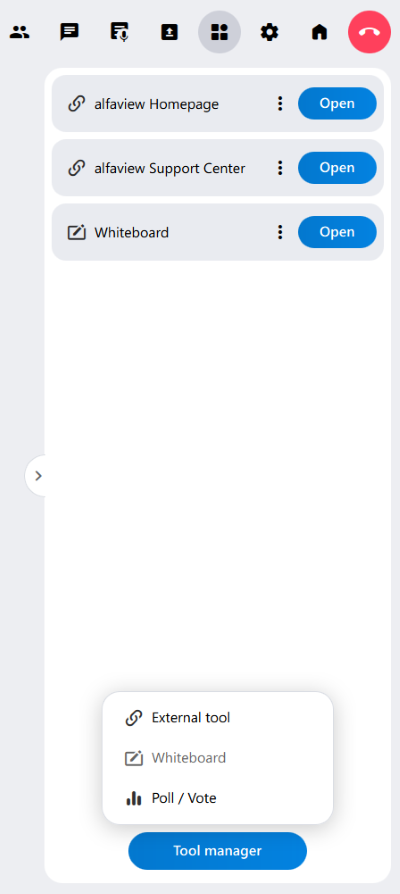
External tool
As administrator or moderator, you can link external websites or apps from third-party providers as External tools in your Toolbox. Everyone in your alfaview room can access these links.
Create an External tool
- Click on the button in the Tool manager.
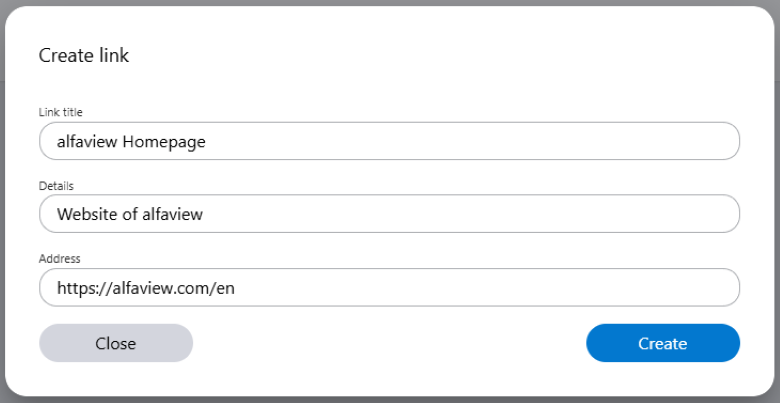
- Enter the following information:
- Link title: Enter a title for your link.
- Details: Add a short description for your link to provide further information to participants in your alfaview room. This entry is optional.
- Address: Enter the web address (URL) of your link. Please ensure that the address you enter is a valid HTTP/S link.
- After clicking on the button, all individuals in your alfaview room will be able to access the link in the Toolbox.
Update an External tool
- In the Toolbox in the alfaview app, click on the context menu
 next to the link you want to edit.
 - To edit a tool, click on
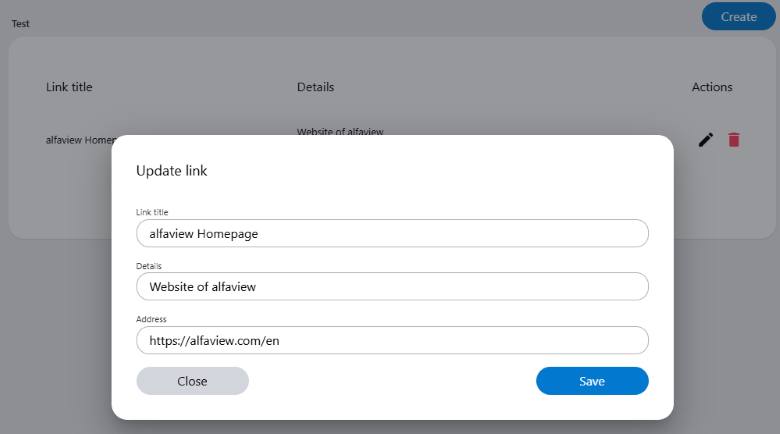
 Edit. You will now be redirected to the Tool manager in your Internet browser. If you have already accessed the Tool manager, you can select the link to be edited directly from the list of all links. Then click on the Edit icon.
 - You can now change the link title, the details and the web address. Confirm the changes by clicking on the button.
Delete an External tool
Note: The External tool will be deleted immediately as soon as you click on  Delete in the Toolbox of the alfaview app.
In the alfaview app:
- Open the
 Toolbox in the alfaview app.
 - Click on the context menu next to the link you want to delete.
- Click on Delete. The external tool will be deleted immediately.
In the Tool manager:
- Open the External link’s Tool manager in the Toolbox.
- Select the link you want to delete from the list of all links.
- Click on the Delete icon.
- Confirm the deletion by clicking on button.
Whiteboard
The whiteboard is available in the alfaview toolbox. All participants in an alfaview room can work on it together and download the results. The whiteboard is automatically deleted after a week.
You can create only one whiteboard per alfaview room. Only participants with the room permission “Allow screen sharing” can actively work on the whiteboard. Participants without this permission can open the whiteboard in “view only” mode.
Create the whiteboard
- Open the Toolbox in the main menu.
- Click on the button.
- Then, click on the button.
- The whiteboard link now appears in the toolbox list.
Open the whiteboard
- Open the Toolbox in the main menu.
- Select the whiteboard from the links list. Click on the button to go to the whiteboard.
Delete the whiteboard
Note: The whiteboard is deleted immediately when you click Delete.
- Open the Toolbox in the main menu.
- Click on the context menu of the whiteboard.
- Then click on Delete.
Poll / Quick vote / Star rating
As moderator or administrator, you can create three different queries via the Toolbox:
- Poll
A poll contains a question with up to ten answer options defined by you during creation. You can decide whether the participants in your alfaview room can vote for one or multiple answers. - Quick vote
If you want to get a quick insight into what the participants in your alfaview room think, the quick vote is most suitable. The answers Yes, No and Abstain are already set. You can add further answer options. - Star rating
The star rating allows participants to rate a question, item or suggestion by awarding between one and five stars. The result shows the average of the stars given.
You can display the result of the Poll, Quick vote and Star rating to the participants in the alfaview room.
- Create a Poll
- Create a Quick vote
- Create a Star rating
- Status and actions
- Functions in the context menu
Create a Poll
- Click the button at the top right corner of the Tool manager website.
- Select the Poll template from the drop-down menu.
- Fill in the following fields:
- Title: Enter a title or a description to be voted on.
- Options: You can add up to ten answer options. To do this, enter an option and confirm by either clicking on the plus icon or by pressing the Enter key.
You can change the order of the answer options by clicking on the arrow icons.
Delete an answer you have entered by clicking on the Delete icon. - Click the drop-down menu under Number of selectable options. Now, select whether the participants in your alfaview room can vote for one or more answers.
- Then click on the button. You will now return to the list of all polls and your poll will have the status Draft.
Publish and start: The Publish and start function allows you to open the poll for voting directly.
- Please note that once the poll has been published, it will no longer be possible to edit it.
- Therefore, only tick the box next to Publish and start, if you do not wish to make any more changes.
- After direct publication, the poll has the status Published.
You can find a detailed explanation on each status and the corresponding action in the section Status and actions.
Create a Quick vote
- Click the button at the top right corner of the Tool manager website.
- Select the Quick vote template from the drop-down menu.
- Fill in the following fields:
- Title: Enter a title or a description to be voted on.
- Options: The options Yes, No, and Abstain are already set. You can add up to seven more answer options. To do this, enter an option and confirm by either clicking on the plus icon or by pressing the Enter key.
You can change the order of the answer options by clicking on the arrow icons.
Delete an answer by clicking on the Delete icon. - Click the drop-down menu under Number of selectable options. Now, select whether the participants in your alfaview room can vote for one or more answers.
- Click the button. This will create the poll and take you back to the list with all queries. Your quick vote will have the status Draft.
Publish and start: The Publish and start function allows you to open the quick vote for voting directly.
- Please note that once the quick vote has been published, it will no longer be possible to edit it.
- Therefore, only tick the box next to Publish and start, if you do not wish to make any more changes.
- After direct publication, the quick vote has the status Published.
You can find a detailed explanation on each status and the corresponding action in the section Status and actions.
Create a Star rating
- Click the button at the top right corner of the Tool manager website.
- Select the Star rating template from the drop-down menu.
- Title: Enter a question, statement or description that the participants should evaluate.
- Click the button. This will create the star rating and take you back to the list with all queries. Your star rating will have the status Draft.
Publish and start: The Publish and start function allows you to open the Star rating for evaluation directly.
- Please note that once the star rating has been published, it will no longer be possible to edit it.
- Therefore, only tick the box next to Publish and start, if you do not wish to make any more changes.
- After direct publication, the star rating has the status Published.
You can find a detailed explanation on each status and the corresponding action in the section Status and actions.
Status and actions
Polls, quick votings and star ratings always have a status after they have been created. You can use actions to switch from one status to another. In every status, different functions are available in the context menu.
| Status | Action |
|---|---|
| Draft | You can edit polls, quick votes and star ratings via the context menu while they have the Draft status. You can also preview each query. Click the button to display the query in the alfaview room. Confirm the publication in the new window by clicking the button. |
| Published | The poll, quick vote or star rating is now visible in the alfaview room’s Toolbox. Participants can view the query, but cannot vote yet. Click the button to enable voting. |
| Voting started | Participants can now take part in the poll, quick vote or star rating and cast their vote. Click the button to close the query. |
| Voting ended | The poll, quick vote or star rating will no longer appear in the Toolbox. As an administrator or moderator, you can view the results in the Toolbox. Click on the desired query in the list or on the small arrow to the left of the query’s title. Click the button to make the result available in the alfaview room. |
| Results visible | Participants in the alfaview room can view the result via the Toolbox. Click on the button so that the result is no longer accessible in the alfaview room. |
As long as you do not delete the poll, quick vote or star rating, you can toggle between Voting ended and Results visible as many times as you like. To do this, click on the corresponding action.
Functions in the context menu
In addition to changing the status via the Actions button, you can also access various functions via the context menu . These are used to manage polls, quick votes and star ratings.
Edit: You can edit the title, answer options and number of selectable options when the query has the status Draft.
This function is no longer available in later statuses.
Action: This function allows you to switch from one status to the next. Actions are also displayed as a button in the list of polls, quick votes and star ratings allowing you to switch statuses more quickly.
Preview: The preview allows you to view the poll, quick vote or star rating before you publish it. This allows you to see how it will appear to participants.
CSV export: The function CSV export allows you to download the result as a CSV file.
Duplicate: Create an identical copy of your query. The duplicated query will have the status Draft.
Delete: Delete your poll, quick vote or star rating by clicking on this function. Confirm the deletion in the new window by clicking the button.
The result will then no longer be available.
Last updated on April 28th, 2026, 02:53 pm