
Delete company
To delete your company please login to the administration interface.
Please note: Only company owners can delete companies. In addition, you need the ‘Manage company settings’ permission.
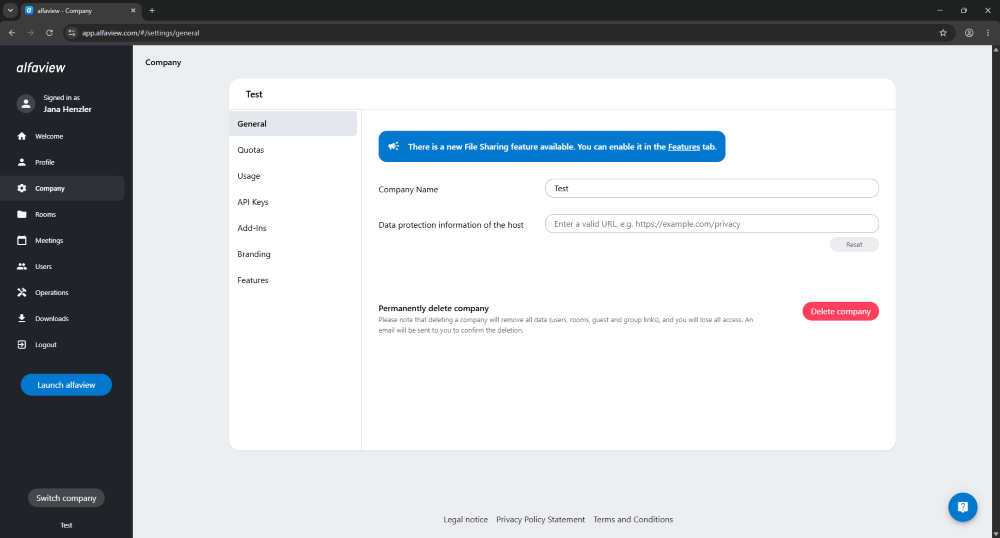
Click on Company in the menu on the left. This tab is only visible to company owners.
By clicking on the button, a window will open.
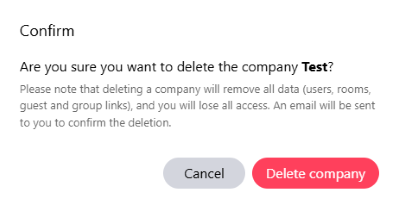
Confirm that you want to delete your company by clicking the button again.
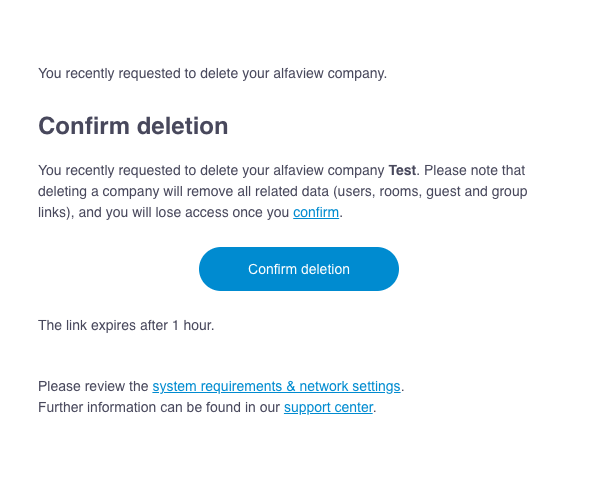
You will then receive an email containing a link to confirm the deletion process. Click on to open a dialog window.
In this dialog, you must confirm the deletion again. Your company will then be deleted permanently.
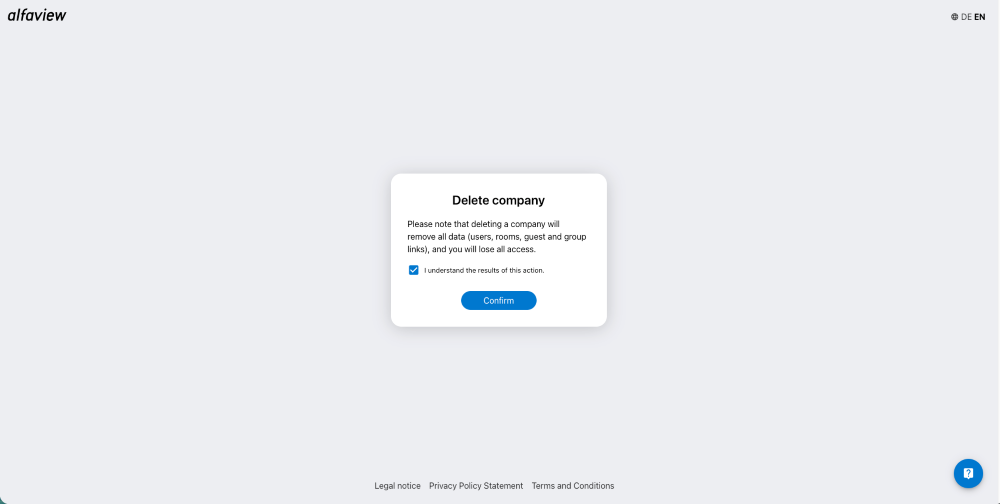
Please note that deleting a company will remove all data (users, rooms, guest and group links), and you will lose all access.
The deletion is permanent and cannot be undone.
Last updated on October 19th, 2026, 02:38 pm