
Managing your subscription (Paying Customers)
You can view invoices, update your payment details, and manage your customer data in subscription management. This is a separate customer portal with its own login – as the owner or a manager of your Company, you reach it from the alfaview administration interface.
There you can view and download your invoices, update your billing address and payment details, and cancel your subscription.
Note: This page applies only to Companies with a paid alfaview subscription. If you use alfaview for free, the Subscription section is not shown in your administration.
To open subscription management, you need the role owner or manager and the Manage Company settings permission. For details, see User permissions.
The path to subscription management
- Log in to the alfaview administration page.
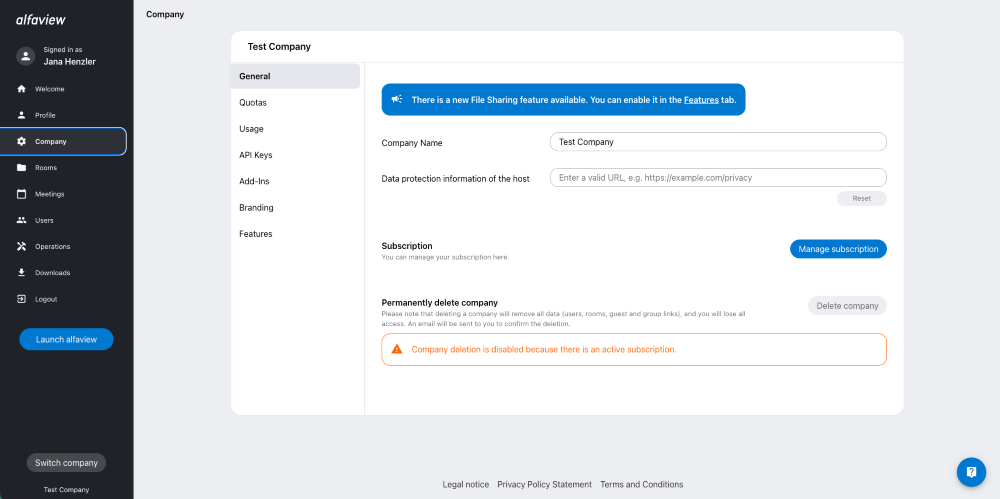
- In the menu on the left, click Company.
- In the General tab, find the Subscription heading and click the button.
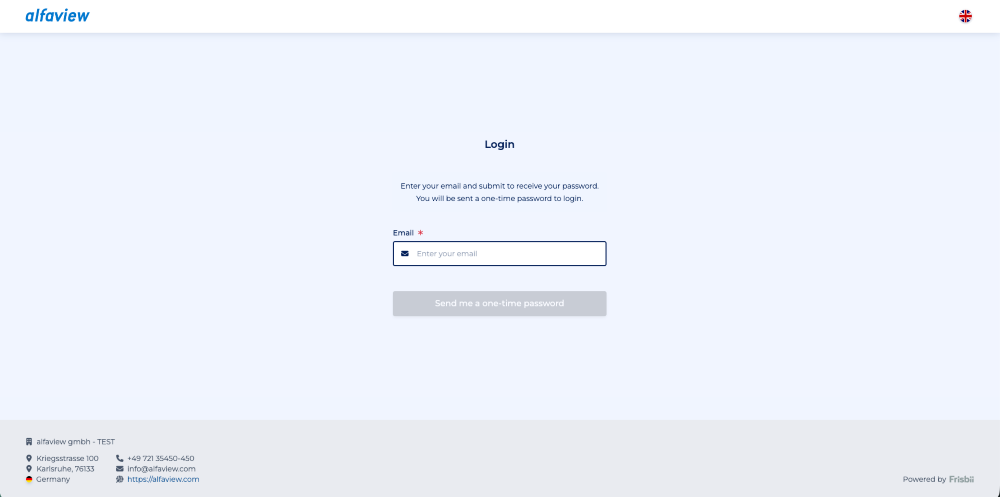
The login page for subscription management opens. You log in without a password, using a one-time code:
- Enter the email address you used to sign up for your subscription.
- Click .
- You will receive an email with a one-time login code. Enter this code on the login page and click .
Using the right email address: Subscription management uses the email address stored when the contract was signed. It may differ from your alfaview login address and often belongs to someone in accounting. If no code arrives, check your spam folder first. If the stored address is no longer reachable – for example because the person has left the company – contact our support team.
Subscription management
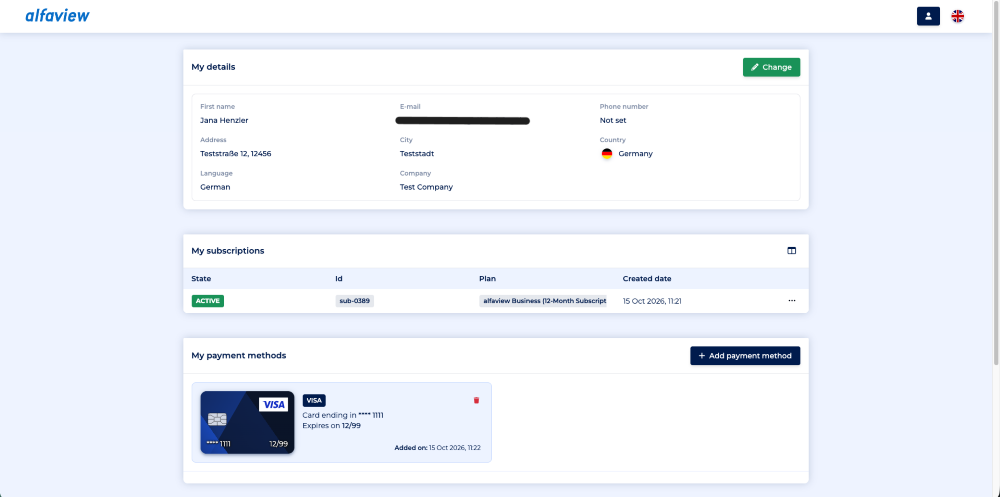
Subscription management is divided into My details, My subscriptions, My payment methods, and My invoices.
My details
Under My details, you can view and edit the information you have provided: name, email address, mailing address, and VAT ID. To do so, click the green Change button. Your changes take effect immediately.
My subscriptions
Under My subscriptions, you will find a list of all the alfaview plans you have purchased. Click one of the subscriptions to view additional information, such as the subscription history, the stored payment method, and your invoices.
By clicking the three-dot menu, you can also cancel the subscription or reactivate it if it has been canceled. For step-by-step instructions, see Cancel subscriptions (Paying Customers).
My payment methods
In this tab, you can view your saved payment method. Click the Add payment method button to update your payment method – for example, if you’ve switched cards. A dialog then asks whether you want to use the new card from now on.
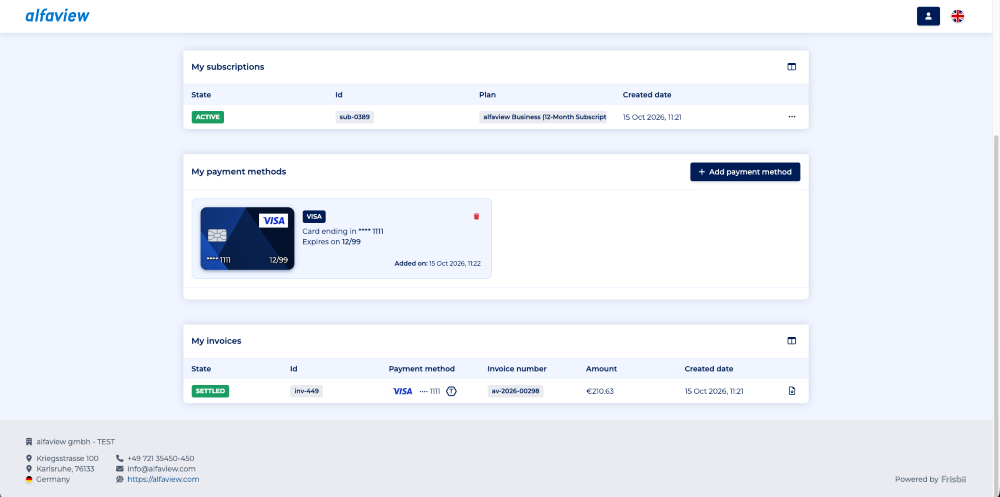
My invoices
Under My invoices, you can view the status, invoice ID, payment method, invoice number, amount, and created date of your alfaview invoices. You can download the invoice as a PDF by clicking the button to the right of the invoice.
Last updated on October 30th, 2026, 10:56 am