
Sharing a Presentation with only one screen
If you only have one screen available, you can still share a presentation in the alfaview room and keep an eye on the participants at the same time. To do so, start the slide show in its own window instead of in full screen, and share that window using the Application share feature.
These instructions describe the procedure on Microsoft Windows using Microsoft PowerPoint. Other presentation programs offer comparable settings under different names.
Preparing the PowerPoint presentation
Apply the following settings before you start the slide show:
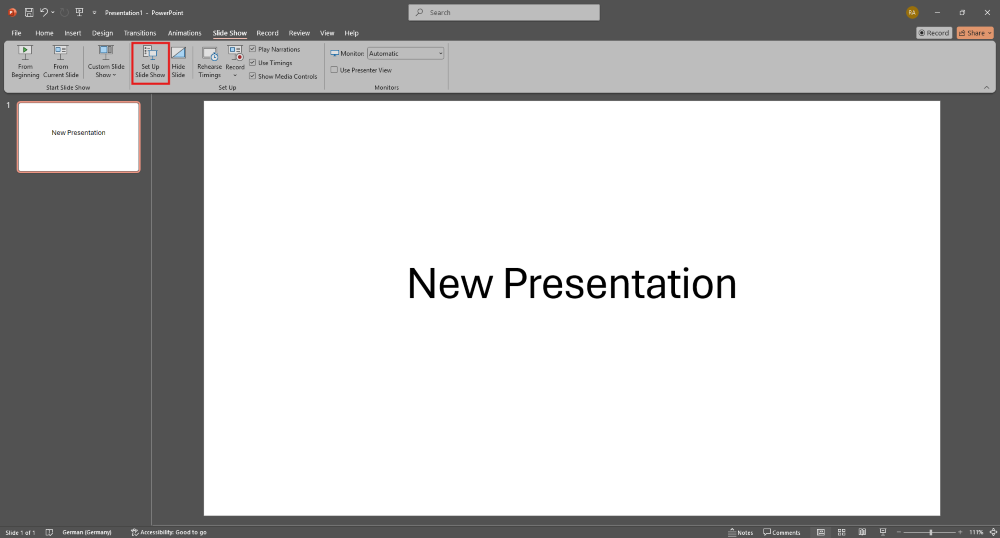
- Open the Slide Show tab in PowerPoint.
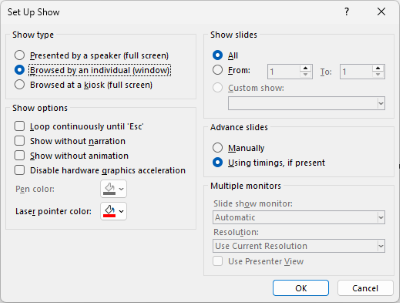
- Click on Set Up Slide Show. A new window opens.
- Under “Show type”, select the Browsed by an individual (window) option.
- Confirm with OK.
When you now start the slide show, it is displayed in its own window instead of in full screen.
Sharing the presentation window in alfaview
- Switch to the alfaview app.
- Click on the Share content button in the main menu.
- Click on the Application button in the selection menu. All applications you are able to share are displayed.
- Select the window of the running PowerPoint slide show.
Note: Once you have selected an application, transmission will begin immediately.
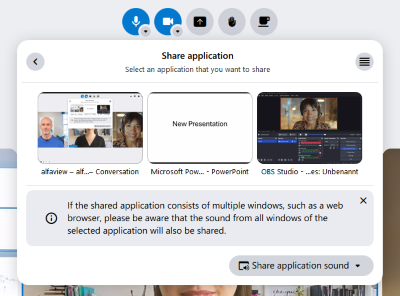
If you want to share your computer’s sound alongside the slides – for an embedded video, for example – click Share application sound or Share computer sound before selecting the application. For more information, see Audio selection.
Arranging the windows
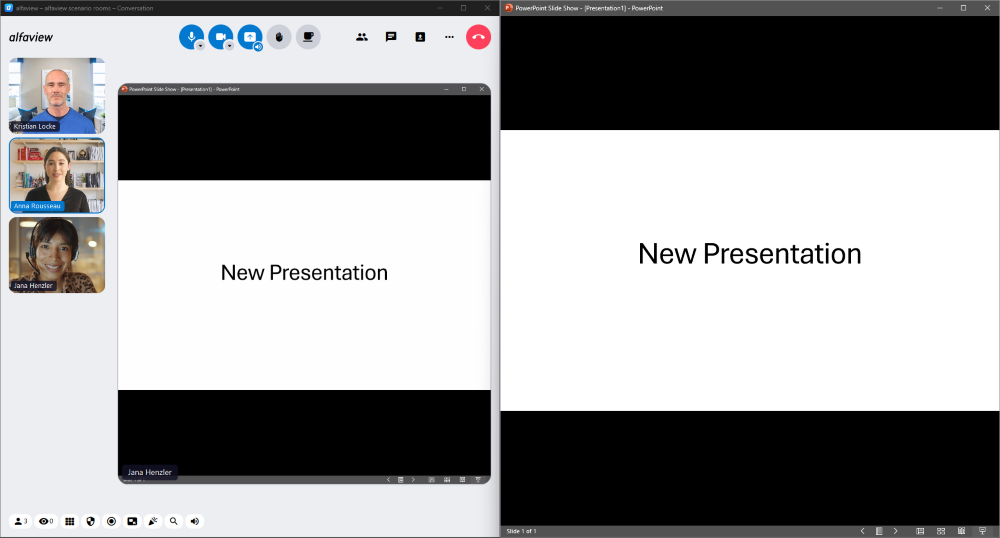
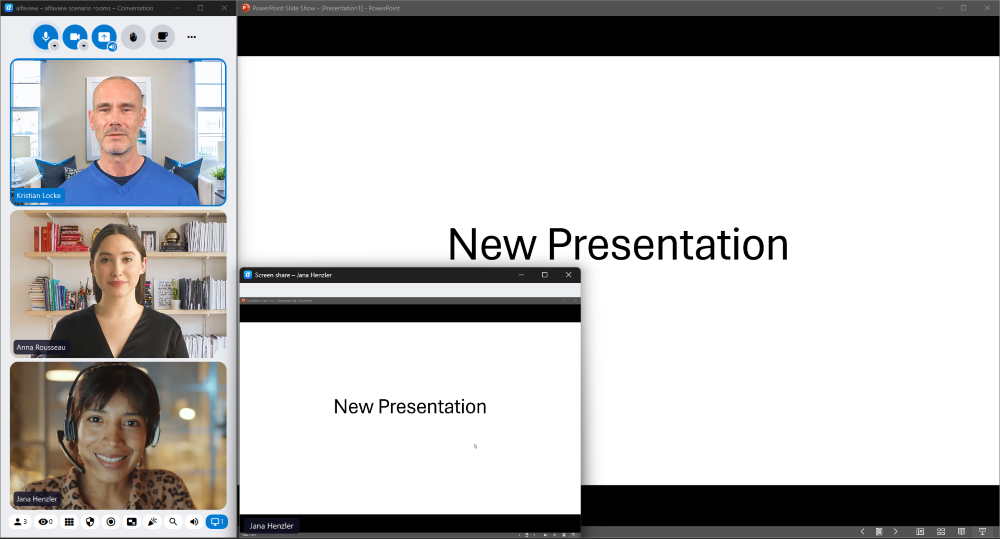
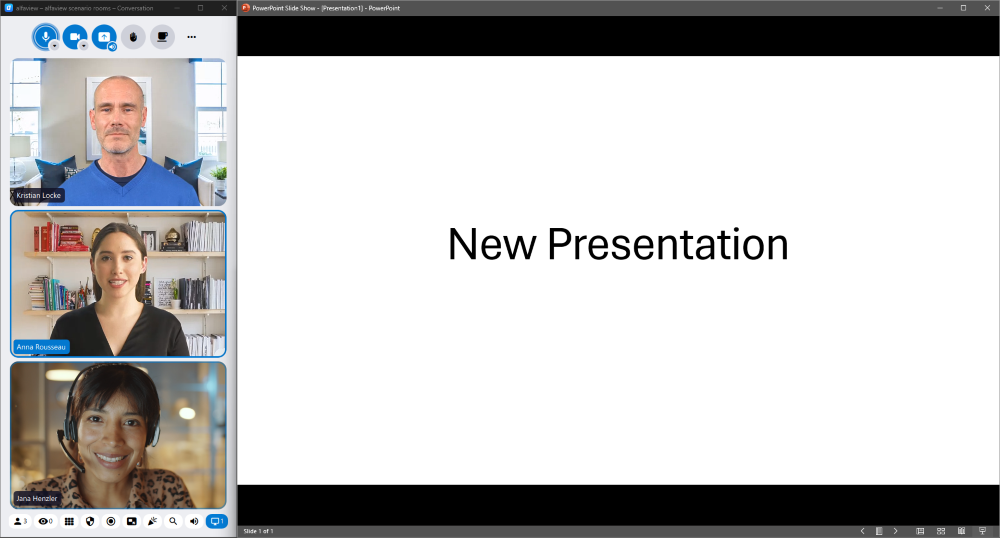
Once the transmission has started, the participant videos are displayed at a reduced size at the edge of the stage, and the presentation appears in the presentation area. To be able to advance your slides while still seeing the participants, we recommend the following arrangement:
- Reduce the size of the alfaview window so that it only takes up one half of your screen.
- Arrange the window of the PowerPoint slide show on the other half.
Undocking and minimizing the screen share
Undock your screen share in alfaview and minimize the undocked window.
- Click on the Pop-out button in the screen share video. Alternatively, right-click the screen share and select the Pop-out command from the context menu.
- The screen share is displayed in its own window.
- Minimize this window.
- To display the screen share in the main window again, simply close the undocked window.
For more information, see Display screen share in a separate window.
Stopping the transmission
- Click on the Share content icon in the main menu.
- Then click the red Stop button in the screen share menu.
Tips
- Share the presentation window rather than your whole screen. That way your notes, your email program and any other open windows stay invisible to the participants.
- Before your training session, check whether the arrangement works for you.
- If you are able to connect a second screen, using PowerPoint’s Presenter View on one screen and alfaview on the other is the more comfortable option. These instructions are intended for cases where only one screen is available.
Last updated on September 3rd, 2026, 08:37 am