File Sharing
Before you start
The file sharing feature is disabled for newly created company accounts. We are following the principle of “Security by default” and “Privacy by default”. If you want to use the feature, it has to be explicitly activated in the company settings by a company administrator.
File sharing allows you to exchange files with other people in the alfaview room.
- File sharing menu
- Upload files
- Download files
- Sort and group
- Moderator options
- Administrator options
File sharing menu
Click the File Sharing icon in the function menu at the top right to open the file library.
File sharing can be enabled or disabled in the room features. Only moderators or people with admin rights can edit the feature via room management or the host tools in the room.
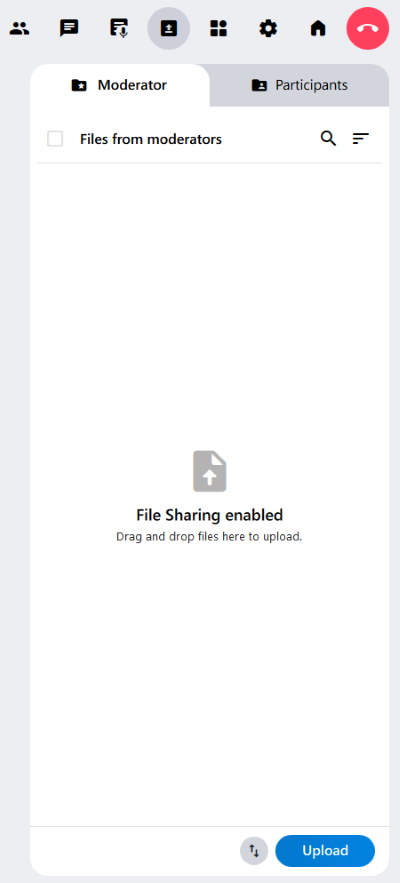
Upload files
- Open the Participants tab in File Sharing.
As a moderator, you can also store files in the Moderators tab. Participants can only download material curated by moderators from this tab.
- Drag and drop one or more files into the window. Alternatively, click in the lower right corner. The document folder on your PC will open. There you can choose the file you want to upload to the alfaview room by double-clicking it or clicking on the file followed by “Open.”
- The File Transfers window will open, allowing you to track the upload progress for each file in real time.
- Once the upload is complete, the file will be visible to everyone in the room via File Sharing.
Each room can store a maximum of 500 files (total maximum 1 GB) in File Sharing. The files have no expiration date and remain in File Share until they are deleted.
In the feature settings, you can limit the upload speed.
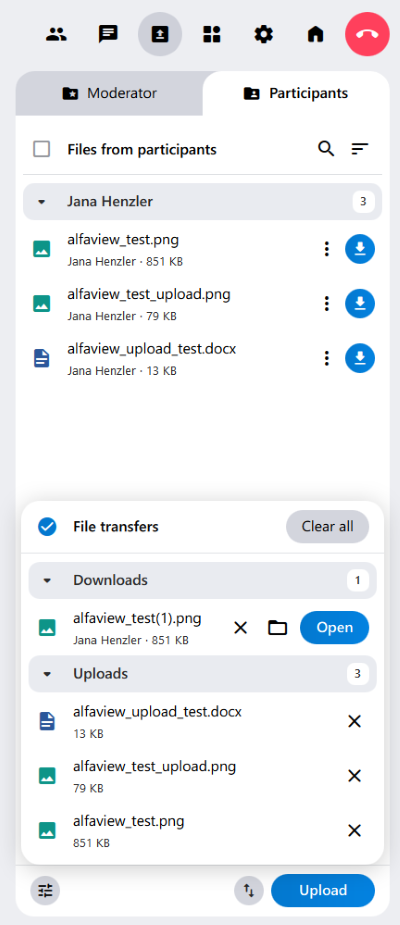
Download files
- Open File Sharing and choose between the Moderators (material curated by moderators) and Participants (material uploaded by participants) tabs.
- Find the file you want to download in the list and click the download icon to the right next to the file.
- The File Transfers window will open, where you can track the download progress.
- Once the file is downloaded, you can open it directly by clicking in the File Transfers window. Clicking the folder icon will open the file’s storage location.
You can also download multiple files at once. As soon as you click on a file name, checkboxes appear in front of the files. All files with activated checkboxes are downloaded simultaneously when you click on .
Activate the checkbox in front of “Files from participants” or “Files from moderators” to select all files that match the selection criteria
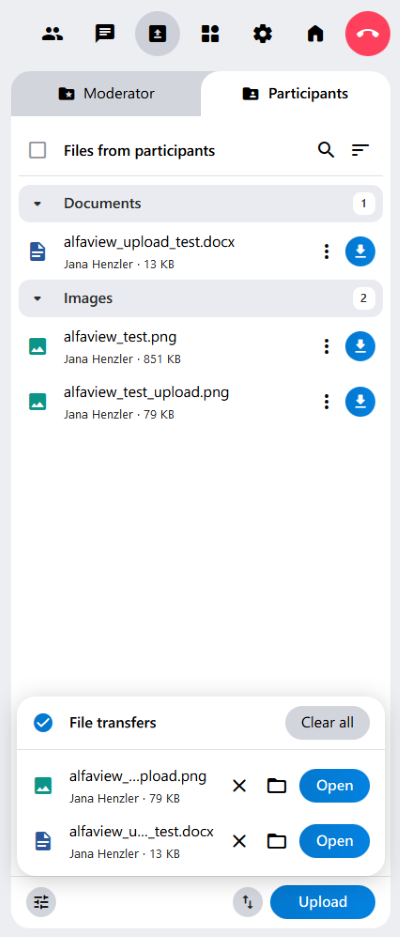
Sort and group
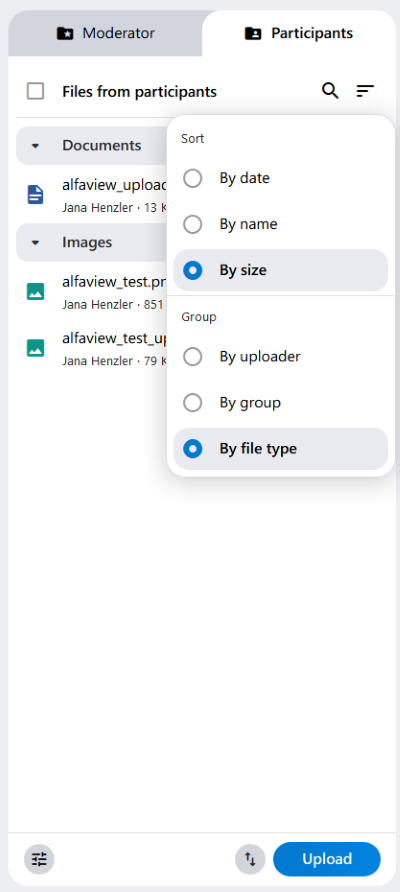
For a better overview, you can sort and group the files in File Sharing.
The following options are available to you:
- Sort by date of the upload
- Sort by name of the file
- Sort by size of the file
- Group by uploader
- Group by group
- Group by file type
File options
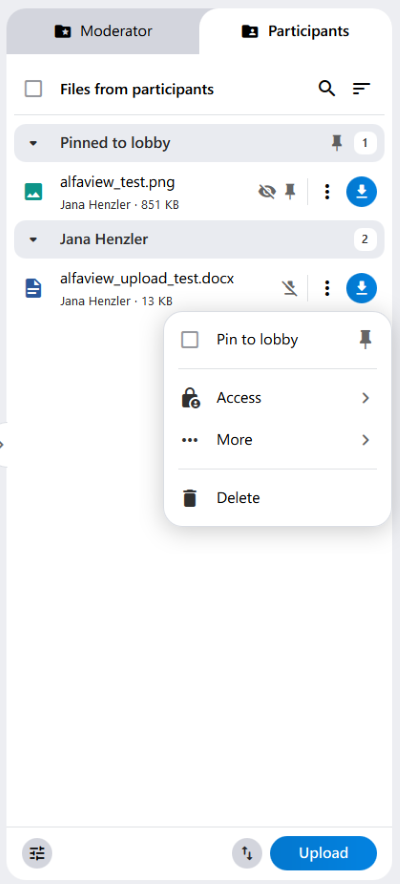
The file’s options menu is located as a three-dot menu to the left of the download button. Here you can pin the file to the lobby, edit access to the file, report or delete it.
The file options can be selected individually for each file. You can also edit multiple files at once. As soon as you click on a file name, checkboxes appear in front of the files. The three-dot menu now appears at the bottom of the tab next to .
If you activate the checkbox in front of “Files from participants” or “Files from moderators,” all files that match the selection will be selected.
Pin to lobby
The file appears at the top of the Participants tab in File Sharing.
More
You can use the More option to report files if, for example, they contain inappropriate content. Once you report the file, it will be sent to alfaview Support, which will review it and delete it if necessary.
Delete
You can delete your file at any time. As soon as you click on Delete, a window will open in which you must confirm the deletion. Only then will the file be deleted from File Sharing.
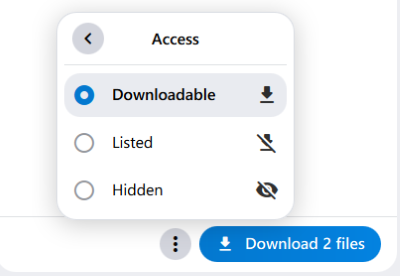
Access
- Downloadable: The file can be downloaded by moderators and participants in the room.
- Listed: The file is visible in File Sharing but cannot be downloaded.
- Hidden: Only the person who uploaded the file as well as moderators can see it. The file is invisible to everyone else in the room.
Moderator options
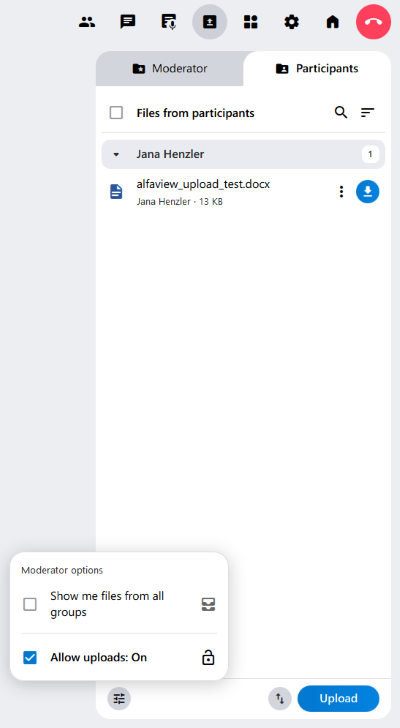
As a moderator, you can use the moderator options to configure additional settings.
- Show me files from all groups: While participants can only see the files from the room they are in, the moderator has the option of displaying all files from all room groups.
- Allow uploads: Here, the moderator can enable and disable file uploads by participants. If the permission has been revoked, the message “Participant uploads are disabled” appears in the Participants tab.
Administrator options
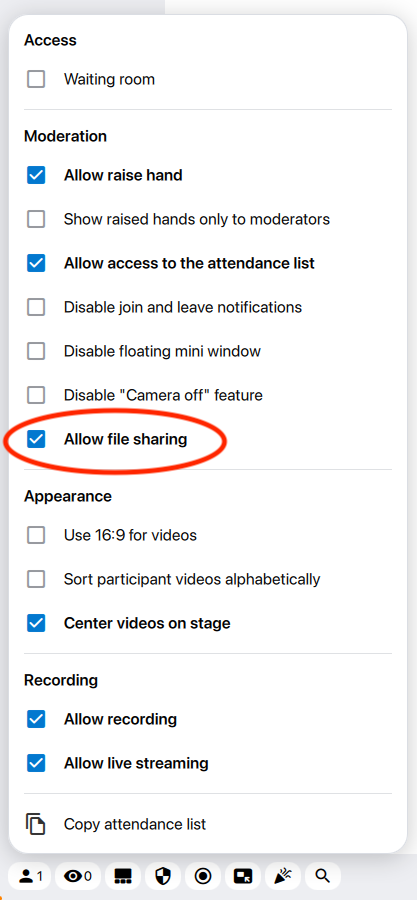
As a moderator and also as an administrator for an individual room you can enable and disable file sharing feature per room. Go to the host tools in the status menu and toggle the Allow file sharing checkbox.
If you want to enable or disable file sharing completely, or change the default availability across the company, you can do so in the company settings.
Last updated on April 1st, 2026, 06:25 am