
Required permission for screen sharing on Apple devices
Required permission for screen sharing on macOS
For macOS screen recording has to be allowed in the system settings.
- Open the system settings.
- Select the item Security & Privacy. Here you will find Screen & System Audio Recording.
- Allow alfaview to share your screen by activating the switch next to the alfaview icon.
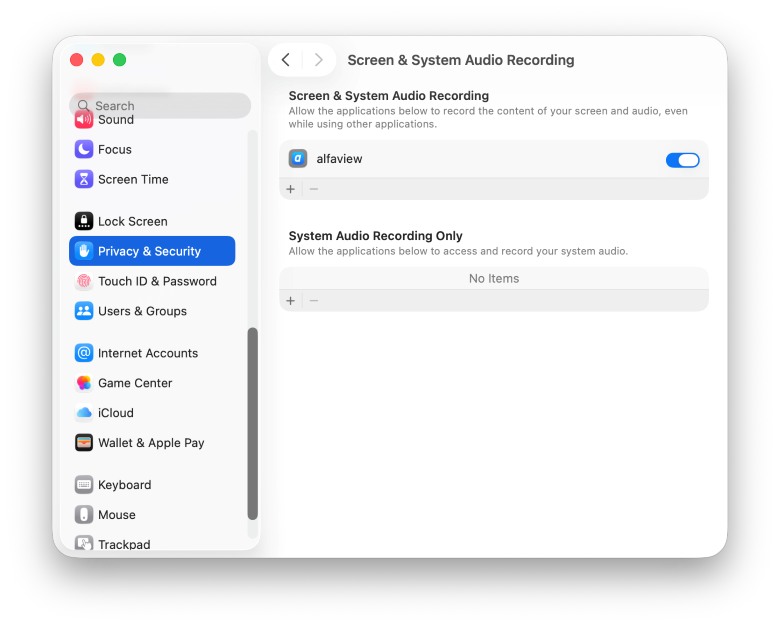
You have to restart alfaview for the setting to take effect.
If the alfaview icon is grayed out, you have to click on the lock. You will be asked to enter your password. Now you should be able to activate the switch next to the alfaview symbol.
Screen sharing on iPad or iPhone
With alfaview Client version 9.28 and later, you can activate screen sharing directly using the “Share Screen” button in alfaview on your iPhone or iPad. However, if this doesn’t work on your mobile device, here’s an alternative method.
To share your screen on your iPhone or iPad, you’ll need to adjust a few settings on your mobile device. This is because the iOS operating system has its own feature that records your device’s screen.
- Start the alfaview app and join an alfaview room.
- Open the Control Center of your device. alfaview has to run in the background. Follow the instructions for iPhone and iPad to open your Control Center.
- Press the Screen Recording button for a longer period of time (long press) to make adjustments. Select alfaview as the destination of the screen recording. You are now sharing your screen in alfaview.
- Close the Control Center and switch to the application you want to share with the other participants.
- To stop the screen sharing, re-open your Control Center and press the Screen Recording button.
If the Screen Recording button is not available in your Control Center, go to your settings and add it to your Control Center.
Last updated on July 8th, 2026, 11:59 am