Host Tools
You can enable or disable room features using the host tools in the status menu. Room features allow you to configure additional settings for a room. You can find more room features, such as “Disable browser access for guests,” in the room management.
Room Features in the alfaview room
You can manage some selected Room features via the  Host Tools in the status menu.
- Join the room for which you want to customize the Room features.
- Click on the Host Tools icon in the status menu at the bottom left.
- Tick the boxes for each Room feature that you want to enable for this room.
The features are grouped into four categories: Access, Moderation, Appearance and Recording.
You can customize the following features:
Access
Waiting room
Activate the Waiting room feature in your room to selectively bring people into your meeting.
For more information, please refer to page Waiting room.
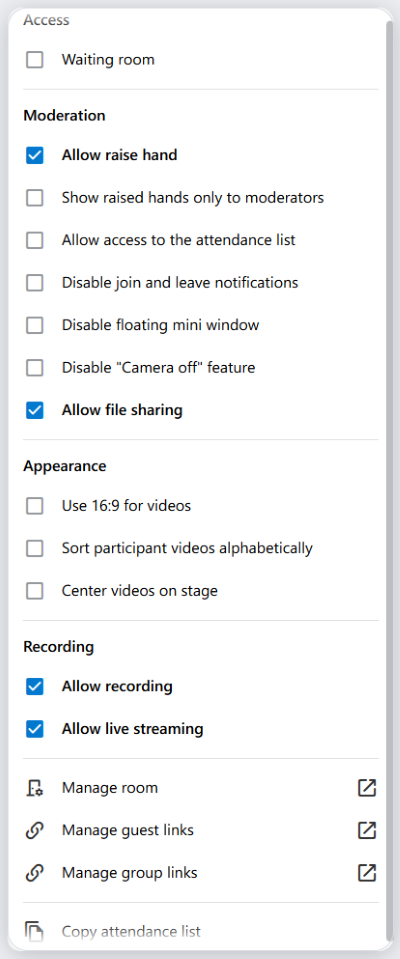
Moderation
Allow raise hand
This setting allows participants and spectators to raise their hand to indicate that they want to say something.
Show raised hands only to moderators
If this setting is activated only moderators can see who is currently raising a hand.
Allow to access attendance list
This setting allows moderators to copy the contents of the participant list to the clipboard. For more information, refer to page Attendance list and attendance report.
Disable join and leave notifications
This setting disables notifications when users join or leave the room.
Disable floating mini window
This setting prevents the displaying of the mini window when the alfaview window is minimized.
Disable “Camera off” feature
Prevents the camera from being turned off.
Allow file sharing
This setting enables file sharing in the room.
The File Sharing feature is disabled by default. If you want to use this feature, you first need to enable it in the Company Settings. This requires the “Manage Company Settings” permission. Only then will Allow file sharing appear in the Host Tools.
Appearance
Use 16:9 for videos
The room will use the wider 16:9 aspect ratio for participant videos.
Sort participant videos alphabetically
This overrides the default order-by-join-time behavior.
Center videos on stage
This allows for a more balanced appearance, but increases movement in the video grid.
Recording
Allow recording
Moderators may record meetings in this room locally.
Allow live streaming
The moderators are allowed to stream the meeting live on external platforms.
Additional settings
Manage room
You will be taken directly to the room management page for the current room.
Manage guest links
Direct link to the guest links for the current room.
Manage group links
Direct link to the group links for the current room.
Copy attendance list
The room’s attendance list is copied directly to the clipboard and can be pasted into any word processing or spreadsheet program.
Last updated on March 26th, 2026, 01:01 pm