Live Transcription, Translation and Digital Interpreter
alfaview offers you different types of transcription for better communication. As a moderator, you can choose the type that best suits your participants and purpose each time.
In order for live transcription and translation to be available to the participants in the alfaview room, room administrators with full room admin permission must activate the function and select which translation languages should be available in their alfaview room.
Instructions on how to do this can be found on the Edit room page.
Live Transcription
Live transcription automatically converts participants’ spoken language into text (speech to text). It is then displayed as a chat message. The Live Transcription can also be translated into various other languages.
Enable and manage Live Transcription
If the live transcription is enabled for your alfaview room, people with admin or moderator rights can start the Live Transcription.
- Click on the Transcription tab in the secondary menu.
- As an administrator, you can first set the language spoken in the room by clicking the button.
- Admins and moderators can start the Live Transcription by clicking on the button. The spoken language will then be displayed as chat messages in the Transcription tab.
- Click the button to stop the transcription.
Once the live transcription has started, the following settings are available:
Transcription options
As an administrator, you can define the language spoken and transcribed in your alfaview room.
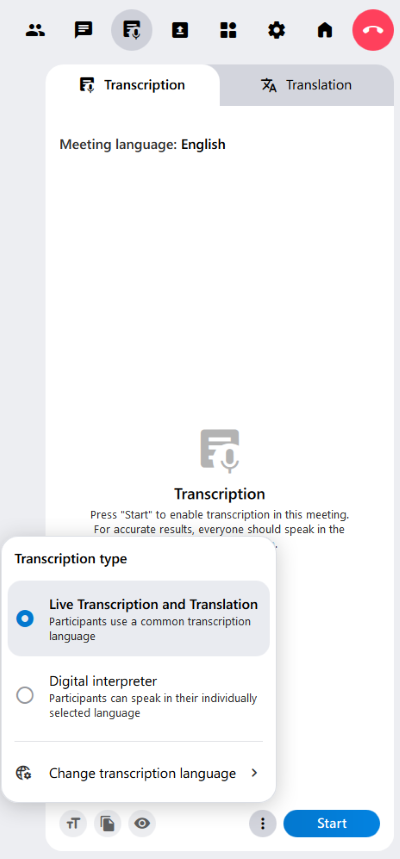
Click on the Transcription Options icon at the bottom of the Transcription tab. The Transcription Type menu will open. Select Live Transcription and Translation, click on Change Transcription Language, and select the room language from the selection list.
Use Live Transcription as participant
- Open the Live Transcription tab in the Secondary menu.
- The Live Transcription tab now displays the spoken word in the room as a transcription.
The following functions are available for live transcription:
Font size
You can change the font size of the live transaction by clicking the icon. Several font sizes are available.
Copy text
You can copy the live transcription or translation. To do this, click the copy icon. The text will be saved in your clipboard. Paste it into a text program of your choice.
Hide your own text
You have the option to hide your own comments in the transcript. When the icon is blue, the feature is enabled. Clicking the icon again will make your comments visible again.
You will be shown a running live transcription from the time you joined the meeting room. This means that you can only copy the part of the live transcription for which you were present in the alfaview room.
Live Translation
You can also have the live transcription translated using live translation. The transcription will be translated into your desired language and displayed as text.
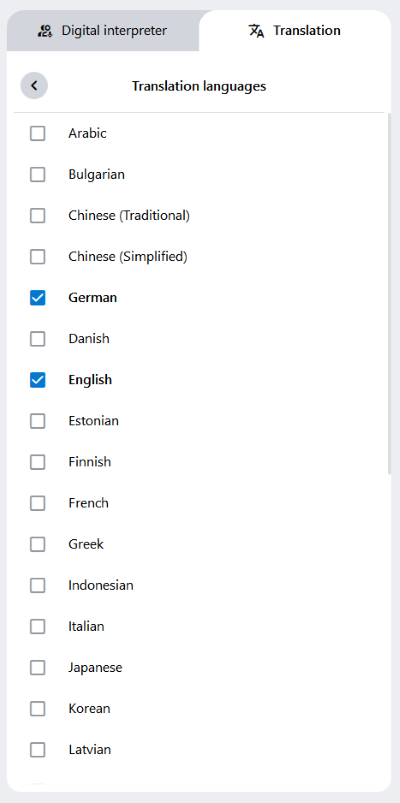
Administrators can set the available translation languages by clicking on Translation options at the bottom of the Translation tab. The Translation menu will open. Click on Update available languages and select the translation languages from the list. A maximum of 3 languages can be selected.
For more information, please refer to Translation.
Digital Interpreter
The Digital Interpreter helps participants who speak different languages to communicate with each other. All participants decide for themselves which language they speak. The digital interpreter automatically translates what is said into the chosen language.
The Digital Interpreter Feature must be enabled by moderators or room administrators in order to be available to participants.
If enabled, you can find the Digital Interpreter in the Secondary menu under  Live Transcription.
The Digital Interpreter helps you to follow multilingual conversations. You select the language you want to speak. The spoken word is displayed in the language you selected.
Selecting a language
The language selection is located at the top of the Digital Interpreter tab. The selection can be updated at any time:
- Click the drop-down menu next to Your spoken language. If you have previously selected a language, the drop-down menu will display a country code.
Depending on the room administrator’s settings, you can choose from different languages.
- Click on the language you speak. The selected language will immediately change.
- You can now speak in your chosen language and the spoken word will appear as transcribed text.
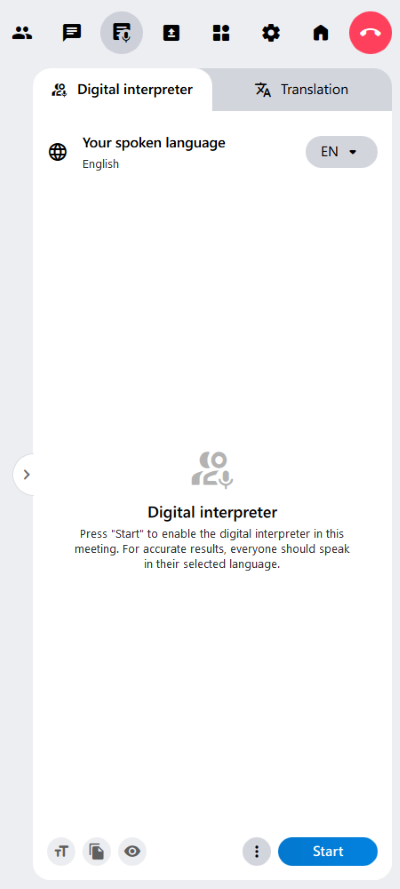
If the participants are speaking in a language other than the language you are using, their spoken words will be displayed in the language you have selected.
Settings
You can adjust the following settings for the Digital Interpreter:
Click on the Font size icon to adjust the font size of the text. Each click increases the font size by one size.
You can copy the text from the Digital Interpreter. To do this, click on the Copy to clipboard icon. The text will be copied to your clipboard. Paste it into a text program of your choice.
You can hide your own spoken text. To do this, click on the Hide own text icon. The transcription of your own spoken word will no longer be visible in the Digital Interpreter tab. Instead, you can only see the text of the other participants’ spoken word.
Live Translation
The digital interpreter currently supports eight languages. The spoken word can therefore be translated into this languages.
For more information, please refer to Translation.
Settings for moderators
Moderators can start and stop the Digital Interpreter and can choose between the transcription types Digital Interpreter and Live-Transcription. While the Live-Transcription is limited to one spoken language in the room, the Digital Interpreter allows participants to choose their individual preferred spoken language.
Selecting a transcription type
Select the transcription type as the first step:
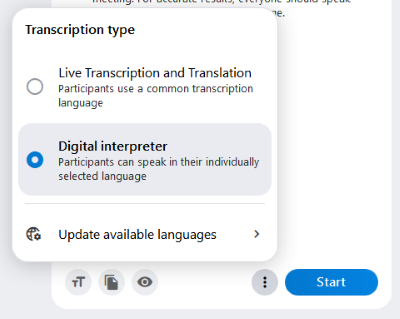
- Open the settings by clicking on the
 Transcription options icon at the bottom of the tab.
 - Then click on the Digital Interpreter option.
- Close the menu with a second click on the Transcription options icon.
You are now ready to start the Digital Interpreter in your alfaview room.
Starting the Digital Interpreter
Click on the button, to start the Digital Interpreter. Once activated, every word spoken in the room will be logged and translated.
Stopping the Digital Interpreter
Click on the button, to stop the Digital Interpreter. Once the feature is disabled, logging and translation will stop.
Settings for room administrators
Room administrators can also control which languages participants can choose from.
Selecting spoken languages
- Open the Live-Transcription tab in the Secondary menu.
- Click on the Transcription options icon next to in the Digital Interpreter tab.
- Click on Update available languages.
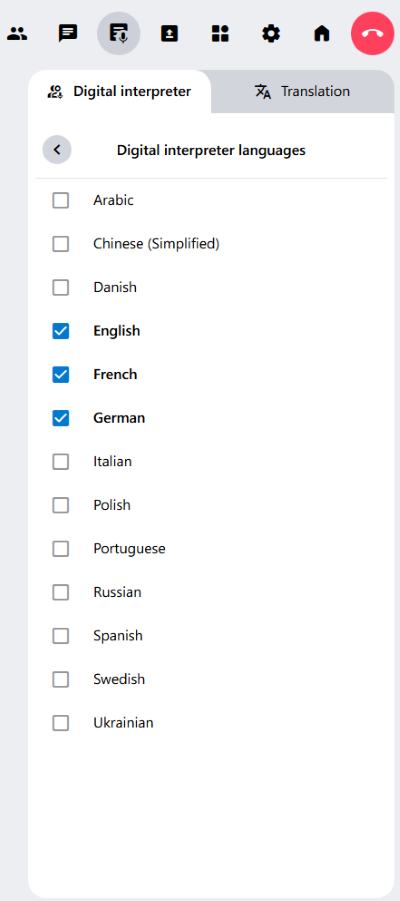
- The meeting language menu offers you the following languages:
- Arabic
- Chinese (Simplified)
- Danish
- English
- French
- German
- Italian
- Polish
- Portuguese
- Russian
- Spanish
- Swedish
- Ukrainian
- Tick the box of each language you wish to activate in your alfaview room.
Translation
The Translation feature offers participants to follow conversations in the alfaview room without language barriers. Both, the Digital Interpreter and the Live transcription can be translated with this feature.
The Translation feature must be enabled by a room moderator in order to be available in the alfaview room.
Settings for participants
The Translation feature translates the spoken word from the Digital Interpreter or Live Transcription into various other languages to minimize language barriers.
You can find the translation in the Secondary menu under Live Transcription. Click on the Translation tab to access the translation.
Selecting a translation language
- Click on the button at the top of the Translation tab.
- Select the language you want the spoken word to be translated into.
The translation will now appear in the sidebar in your selected language. You can change the selected language at any time. The conversation will be translated retroactively into the new language.
Tip: View the Digital Interpreter or Live Transcription and translation at the same time:
- Move your mouse over the left edge of the Live Transcription tab. The pointer will change to a double-headed arrow.
- Hold the left mouse button and drag the tab to the left until the Digital Interpreter / Live Transcription and Translation tabs are displayed side by side.

Settings for room administrators
Enabling translation
The Translation feature must be enabled on the alfaview administration page by a room administrator.
- Log in to the alfaview administration page.
- Click on Rooms in the menu on the left side.
- Click on the
 Settings icon of the room you want to enable the Translation feature.
 - Go to the Transcription tab in the Room Features.
- Click on the switch next to Transcription and Translation availability. If the switch is blue and on the right side, the feature is enabled.
Language selection
As a room administrator, you can select up to three translation languages at the same time. These languages will be available for all participants in your room.
Selecting multiple languages will result in faster consumption of your transcription quota.
In the alfaview administration
- Click on the drop-down menu next to Available translation languages.
- Check the boxes for the languages you want to be available for translation in the room. A maximum of three languages can be selected at a time. You can choose from 31 languages.
The changes will be immediately be implemented in your room.
In the alfaview app
You can select the translation languages in the alfaview app if you are a room administrator.
- Open the Transcription tab in the Secondary menu.
- Click on the Translation tab.
- Click on the Translation options menu at the bottom.
- Click on the option Update available languages.
- Tick the box of each language you wish to activate in your alfaview room (a maximum of three translation languages at the same time). There are 31 different languages to choose from.
The changes will be immediately be implemented in your room.
Last updated on March 31st, 2026, 01:04 pm