Participant videos and presentation area
The stage is the central element in alfaview. This is where both the participant videos and shared content are displayed.
Participant videos are displayed in either Speaker view or Gallery view. When content or a screen is shared in the presentation area, the participants’ videos are displayed at a reduced size.
Participant videos
While you are in an alfaview room, the videos of all participants are displayed on stage.
- Each participant video contains the name of the participant.
- As soon as a participant speaks, a blue frame appears around the video image.
- Participants marked as VIP are displayed with a bigger video image. The videos are also marked with a star icon.
- If a participant is on a break, the coffee cup icon is displayed instead of the video.
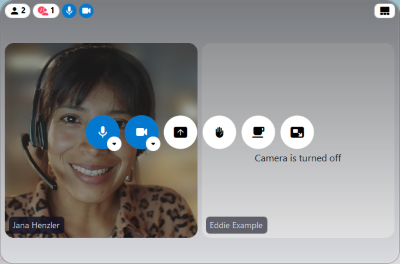
- If a participant has no camera attached, a message is displayed that the camera is turned off.
Participants’ videos are sorted by the order in which they enter the alfaview room. It is possible to change the sorting to alphabetical order in the Room features.
In the Status menu at the bottom left, you can choose whether you want the videos to be displayed in Gallery view or Speaker view. Click on the icon to change the view.
Gallery view
The Gallery View evenly distributes the participants’ videos across the stage. Here, you have the option of displaying all people in the room at the same time or dividing them into groups of 9, 25, 49 or 100 people per side. The size of the video images is adjusted depending on the number of participants per side.
Videos of VIPs are displayed larger than those of other participants.
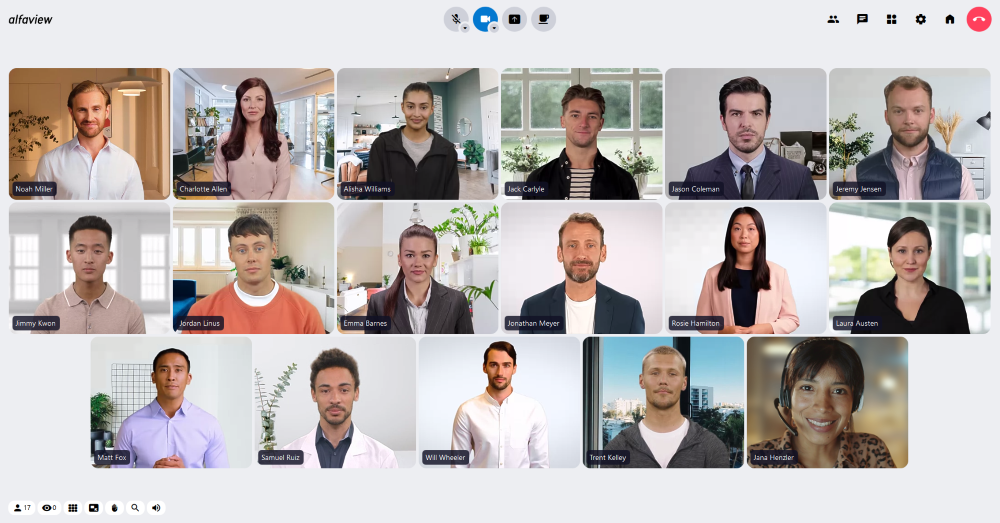
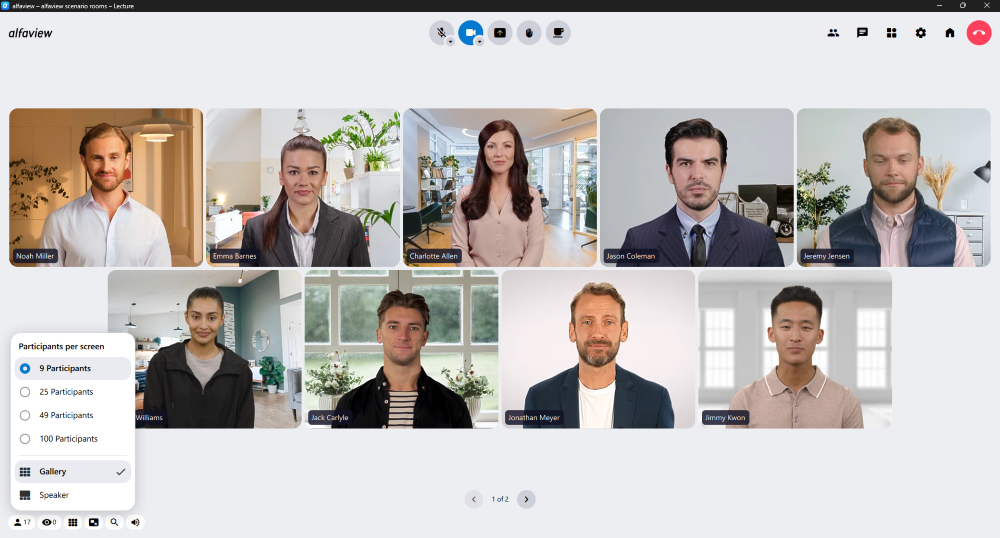
Gallery view with shared content
When a person starts to share content, this content is displayed in the center of the stage. The participants’ videos are arranged to the left of the presentation area. Videos of VIPs are displayed in a larger size.
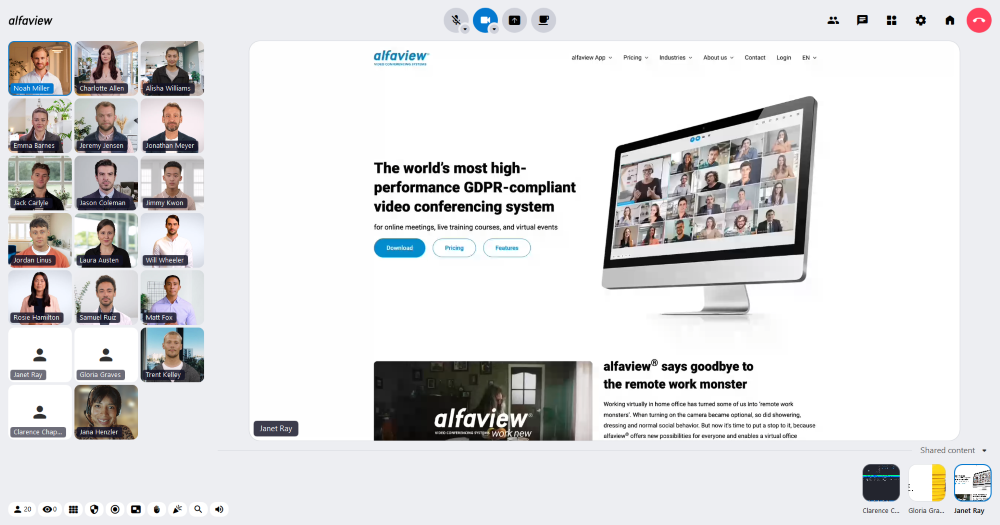
To view specific content when multiple pieces are shared, simply click on the small preview of the desired content located at the bottom of the presentation area.
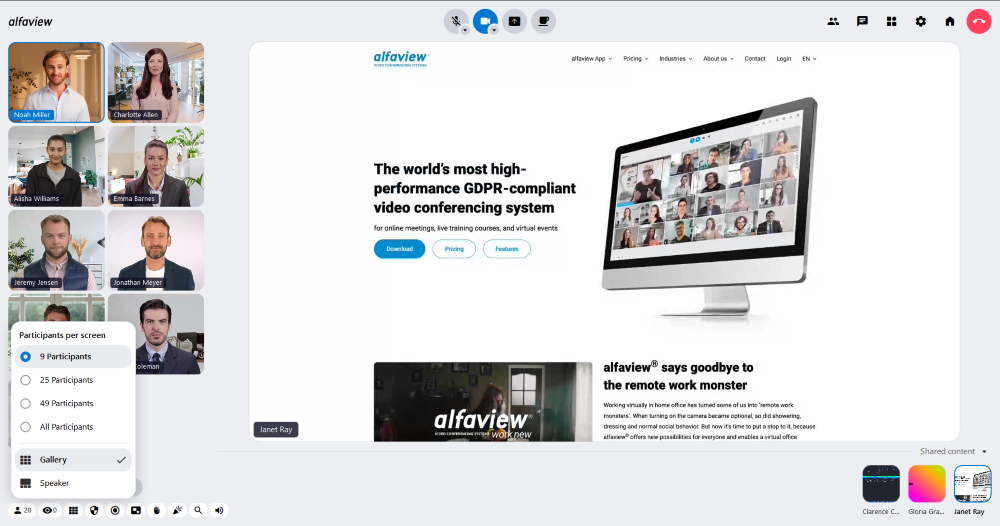
For more information on sharing your screen or using a second camera to share content, please refer to the Screen and audio share page.
Speaker view
The Speaker view displays the person speaking in the center of the stage as a large video, while the videos of other participants are shown in a row at the bottom of the stage.
When participants are marked as VIPs, they are displayed as a large video in the speaker view even when they are not speaking.
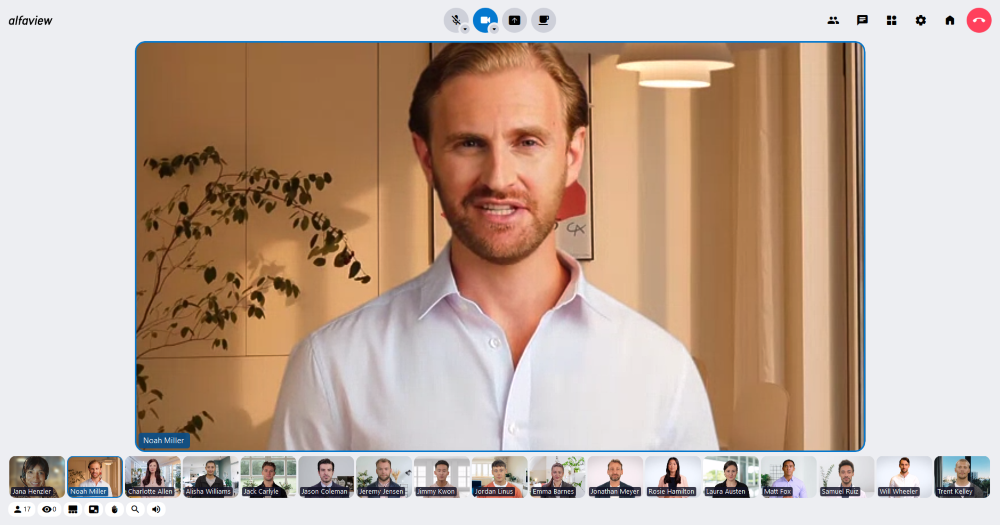
If you want your video to appear at the top of the list of participants’ videos, enable Show me first in the speaker view in the Feature settings. This setting only adjusts your video list and has no effect on other participants’ videos.
Speaker view with shared content
When a participant or moderator starts sharing content, the person speaking is displayed as a larger video next to the shared content in the presentation area. The videos of all other participants will continue to be displayed in a row at the bottom of the stage.
If multiple people share content simultaneously, it will be displayed in a list below the video of the person speaking. To display a specific content, simply click on the content you want to display.
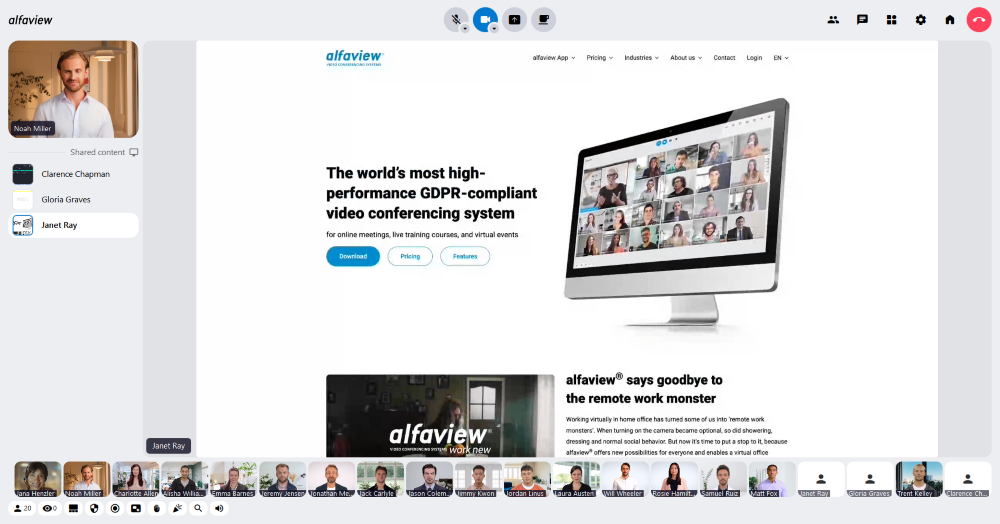
For more information on sharing your screen or using a second camera to share content, please refer to the Screen and audio share page.
Mini window
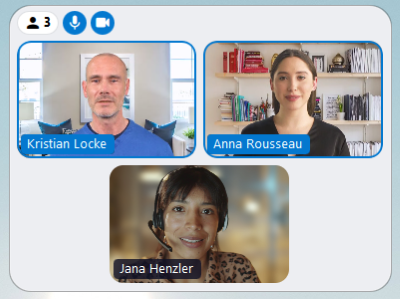
The mini window allows you to stay in contact with other participants while using other applications or sharing your screen. It provides access to the most important functions of alfaview.
Open the mini window manually
Click on the Mini window icon in the status menu to manually open the mini window.
Disable the Mini window
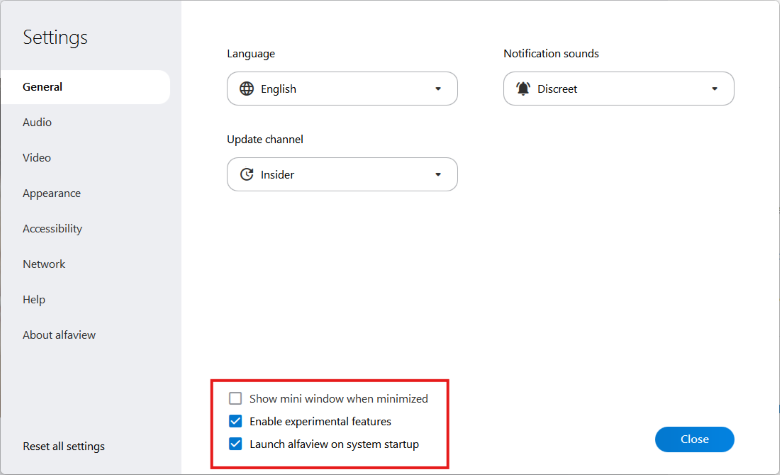
If you minimize the main window of alfaview, the mini window will be displayed automatically. You can deactivate this function in the General tab in the settings by removing the tick in the box next to Show mini window when minimized.
Video view
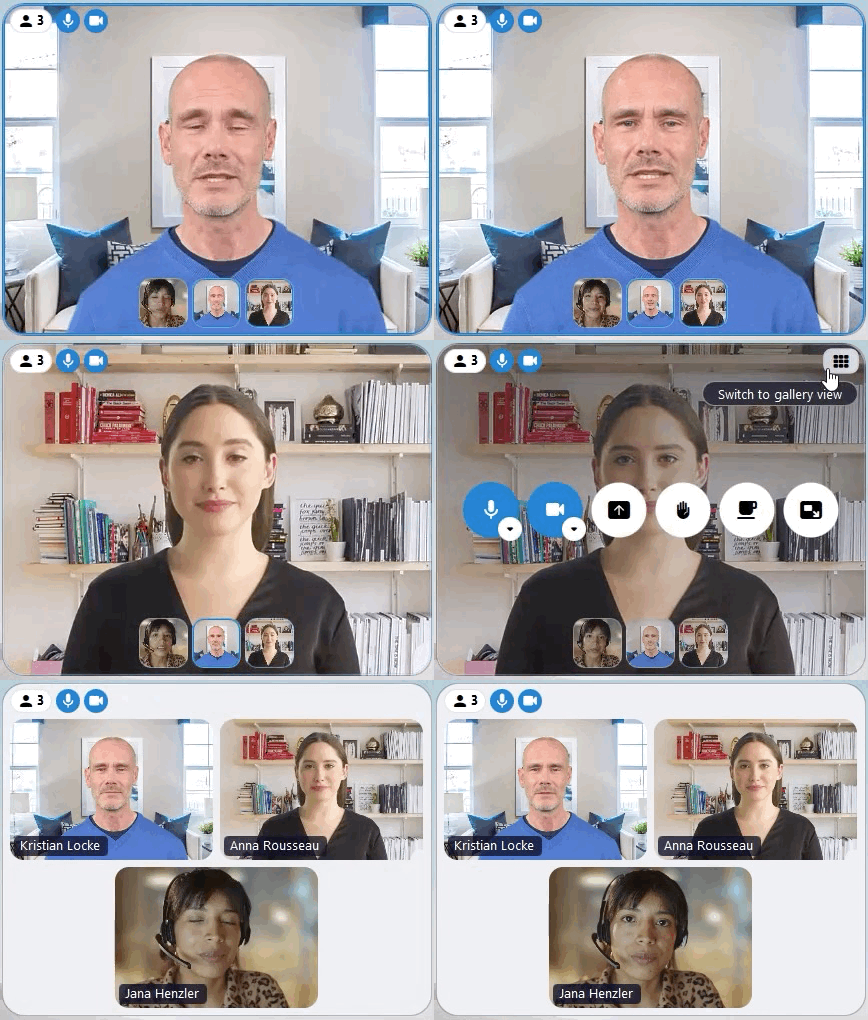
In the mini window, you can select either the speaker view or the gallery view by clicking on the corresponding icon located in the top right-hand corner of the mini window.
Gallery view
The gallery view displays all participants’ videos evenly distributed on the stage.
Speaker view
In speaker view, the video of the person speaking fills the mini window. The videos of other participants are displayed in a row at the bottom of the Mini window.
Compact Control-Only Mode
Instead of the video view, you can choose to display the Compact control-only mode. This view provides access to all settings of the main menu.
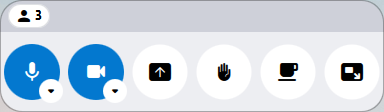
- To switch to compact control-only mode, move the mouse to a corner of the mini window until the pointer turns into a double arrow.
- Click and hold the left mouse button.
- Drag the window smaller.
- Release the mouse button when the compact view appears
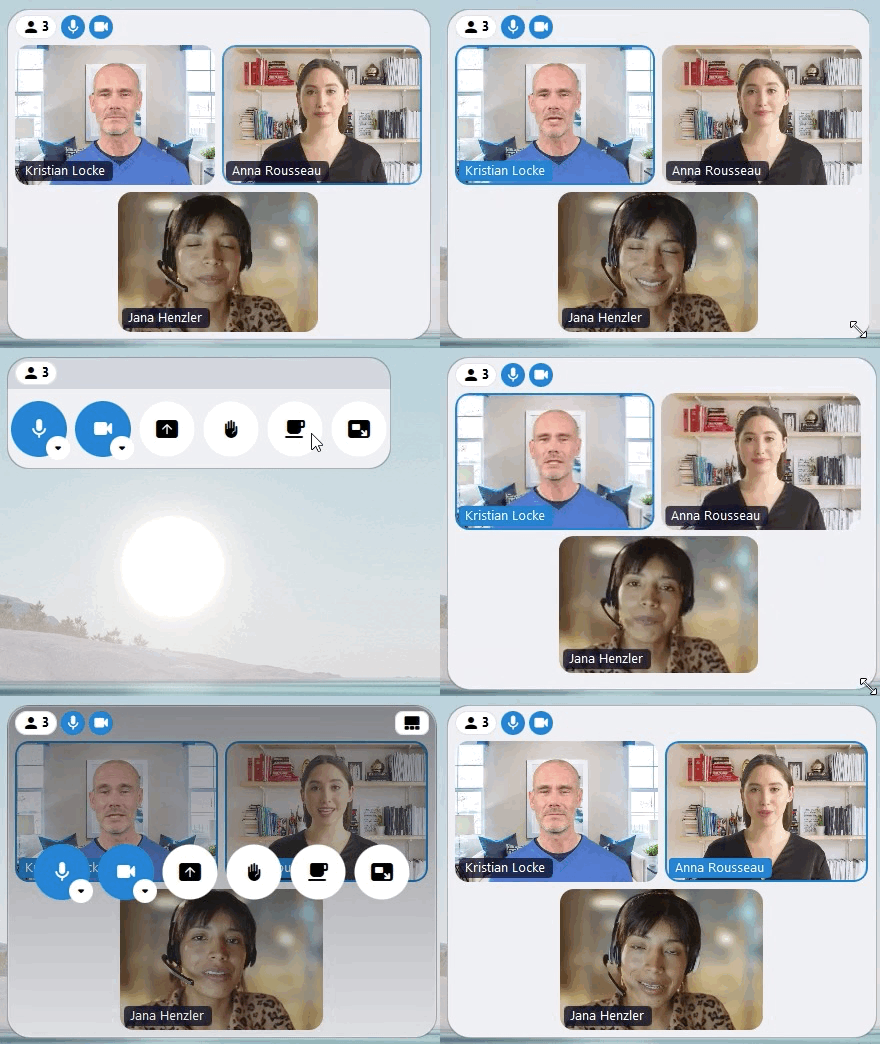
To return to the main window of alfaview, click on the mini window icon.
Primary controls in the Mini window
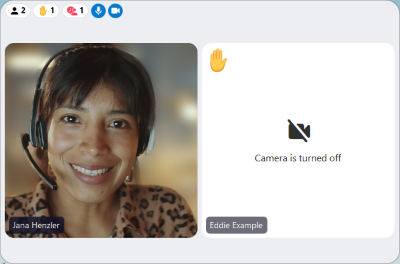
The mini window contains the most important functions and information from the main and status menu.
The Mini window will reopen in the same position when used again.
Main menu
The mini window contains all the functions of the main menu and allows you to return to the main alfaview window.
Status menu
You can find the most important information about your alfaview room in the status menu.
Number of participants
Here you can see the number of people in the alfaview room.
Raise hand
Here you can see the amount of people who currently have raised their hands.
Waiting room
Here you can see the number of people who are currently waiting in the Waiting room. This information is available for room administrators and moderators only.
For further information, refer to page Waiting room.
Microphone
- If your microphone is activated, the
 microphone icon is blue.
 - The
 microphone icon will appear grayed out if your microphone is disabled.
Camera
- If your
 camera is activated, the camera icon is blue.
 - If you only send your camera image to VIPs in the alfaview room, the
 camera icon will be displayed with a small star.
 - The
 camera icon will appear grayed out if your camera is disabled.
Screen sharing
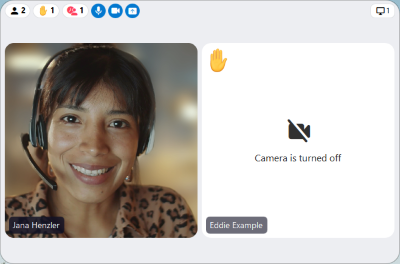
When you share content (screen or second camera), the Screen sharing icon is displayed.
Screen sharing and shared content
Share content
To share your own content (screen, screen region or second camera) with other participants, click on the Screen sharing icon.
For more information, please refer to the page Screen and Audio share.
When you share your screen, the screen icon appears in the top right-hand corner of the Mini window. Click on the icon to view your own broadcast in the Mini window.
To return to the video view, click on the icon again.
View shared content
When someone shares their screen, the screen icon will appear in the top right-hand corner of the Mini window. If multiple people are sharing content simultaneously, you can choose which content to display.
- Click the screen icon.
- Select the shared content you want to view.
- Then, click the button.
- To return to the video view, click the screen icon again and select Hide shared content.

Last updated on February 25th, 2026, 02:16 pm