
Participant list, breakout groups and waiting room
The participant list shows all participants who are currently in the main room or in one of the breakout groups. Participants can join breakout groups to have one-on-one discussions or to work together in a small team without leaving the alfaview room.
- Click the
 Participant list icon in the Secondary menu at the top right-hand corner to open the Participant list. Here, you can see which participants are in which breakout groups.
 - Select the group you want to join from the list.
- Click the button.
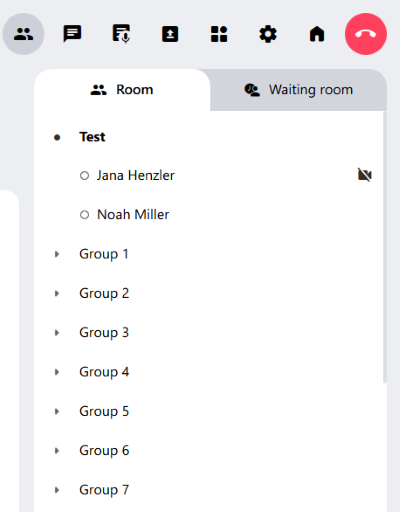
You can send short messages to other participants via the participant list. For more information on this feature, please refer to the Chat messages page.
Search for participants
You can search for a person using the  search icon located in the status menu on the bottom left-hand corner. For more information, please refer to the Status menu section of the Primary and secondary controls page.
Additional features
Moderator controls
Moderators have additional features that are useful for controlling a meeting. These functions can be accessed via the participant list in the function menu.
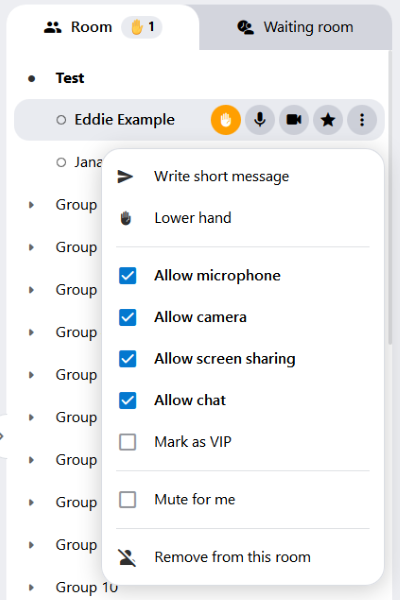
When clicking on a participant, a context menu  appears which allows you to control the permissions of participants.
The features in detail
Write short message
Write and send a short message to a participant.
Lower hand
Lower the raised hand of a participant.
Allow microphone
Activate or deactivate the microphone of a participant.
Allow camera
Activate or deactivate a participant’s camera.
Attention:
If you revoke the Allow microphone and Allow camera permissions for a participant (or yourself), that person will be reassigned the role of Spectator. As a Spectator, this person will not be listed in the Participant list by default.
You can undo the role change in the alfaview app:
- In the
 Settings tab, open the Feature settings.
 - Enable the Show spectators in user list feature.
- Give the participant with the Spectator role (or yourself) the Allow microphone and Allow camera permissions in the Participant list.
- The participant (or you) now has the old role again.
Allow screen sharing
Activate or deactivate screen sharing for a participant.
Allow chat
Grant or deny permission to a participant to send messages in the chat.
Mark as VIP
Highlight a participant. The video will be larger and displayed in the order before the videos of the other participants.
Mute for me
Mute a participant for the user himself.
Remove from this room
Remove a participant completely from the room for 12 hours.
Assign a moderator
The moderator is defined in the room settings. More information can be found in the edit room article.
Note: A moderator is not necessarily required to conduct a meeting.
The participant list gives administrators additional features such as managing group and guest links or sending direct messages to groups. For more information about these and more features, please refer to the Room admin controls page.
There are also additional features available for moderators. These help the moderators to manage participants in the alfaview room. For more information, please refer to Moderator controls.
Room admin controls
As a room administrator, you have additional functions in the app in addition to the moderator functions. To access these functions, open the Participant list in the function menu.
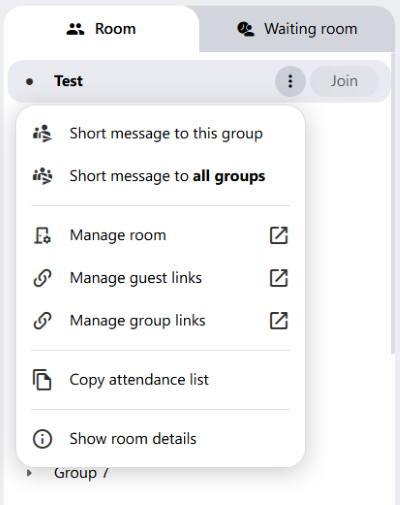
- To access the functions, click on the context menu located next to the name of the alfaview room.
- You can select from the following functions:
Short message to this group
Send a short message to all participants in one group simultaneously.
Short message to all groups
Send a short message to all participants in all groups simultaneously.
Manage room
To modify the room name or the number of groups, click on the Manage room button to access the administration interface.
For more information, please refer to the Room management page.
Manage guest links
To edit existing guest links or create new ones, click on the Manage guest links button. This will redirect you to the administration interface.
For more information, please refer to the Guest and group links page.
Manage group links
To create new group links or edit existing ones, click on the Manage group links button. This will redirect you to the administration interface.
For more information, please refer to the Guest and group links page.
Copy attendance list
Create an attendance list comprising of all attendees in the main room and groups.
Refer to the Attendance list and attendance report page for more information about this feature.
Show room details
The Room Details contains tabs for Groups and Participants, where you can see which participants are currently in which groups. The Manage Room tab also takes you to the administration interface.
Waiting room
The waiting room feature requires the alfaview version 8.68 or higher.
The alfaview version 9.11.0 allows moderators to join waiting participants in the waiting room and speak to them before the participants are admitted to the alfaview room.
As of alfaview version 9.16.1, moderators can add a customized welcome note to the waiting room, which is displayed to those waiting.
The waiting room is deactivated by default and can be activated by moderators or administrators. Participants in the waiting room cannot see or communicate with each other.
Moderators can send private direct messages to people waiting, or join them in the waiting room.
The waiting room
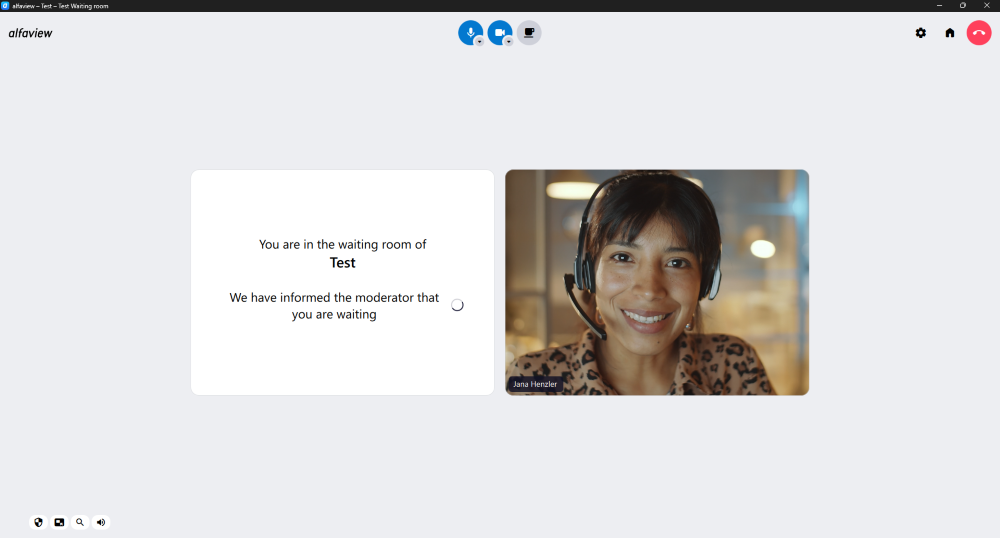
When the waiting room is activated, participants without moderator or administration permission enter the waiting room before being admitted to the alfaview room.
Each participant is informed that they are in the waiting room and that a moderator must grant them access to the alfaview room.
Administrators and moderators skip the waiting room and enter the alfaview room immediately.
Activate the waiting room
You can activate the waiting room both in the alfaview administration or in the alfaview app itself.
In the alfaview app
As moderator or administrator, you can activate the waiting room in the secondary menu of the alfaview app or web client.
- Open the participant list in the secondary menu by clicking on the Participant list icon.
- Click on the
 Waiting room tab.
 - Click on the switch in the bottom of the tab to activate the waiting room. The waiting room is activated when the switch is displayed in blue.
- To deactivate the waiting room, click on the switch again.
In the administration
As a room administrator, you can also activate the waiting room in the room features on the administration page.
- Log in to your alfaview account on the administration interface.
- Click on Rooms in the menu bar on the left side of the administration interface.
- In the list of your rooms, select the alfaview room for which you want to activate the waiting room.
- Click on the Settings icon.
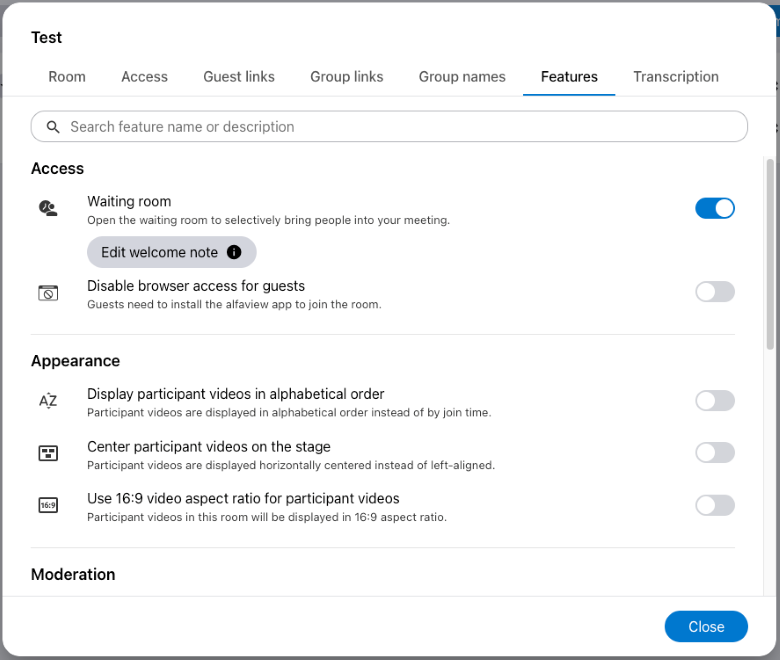
- Click on the Features tab.
- Activate the waiting room by clicking on the switch next to Waiting room. The waiting room is activated when the switch is displayed in blue.
- To deactivate the waiting room, click the switch again.
Edit welcome note
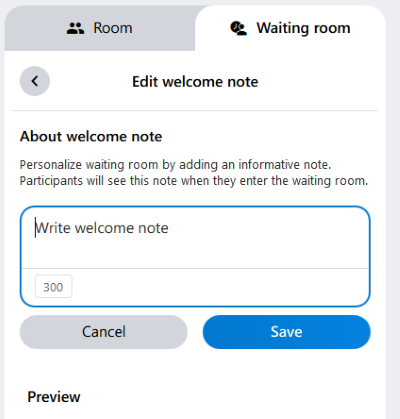
Add a personalized welcome note to the waiting room to be displayed to people while they wait to join the alfaview room. The welcome note can be added individually for each room.
When you deactivate the waiting room, the welcome message will be saved and used again the next time you activate it.
In the alfaview app
- Open the Participant list in the secondary menu.
- Go to the Waiting room tab.
- Click on the context menu of the Waiting room.
- Click the button to adjust the welcome note.
- Click in the text box and enter the welcome note.
- Confirm the changes by clicking the button.
You will be notified if other moderators update the welcome message at the same time as you. This is to ensure that the changes are not overwritten.
Please note:
- The message must not exceed 300 characters.
- It is not possible to format the welcome note using HTML tags and line breaks.
In the administration
- Log in to your alfaview account on the administration interface.
- Click on Rooms in the menu bar on the left side of the administration interface.
- In the list of your rooms, select the alfaview room for which you want to activate the waiting room.
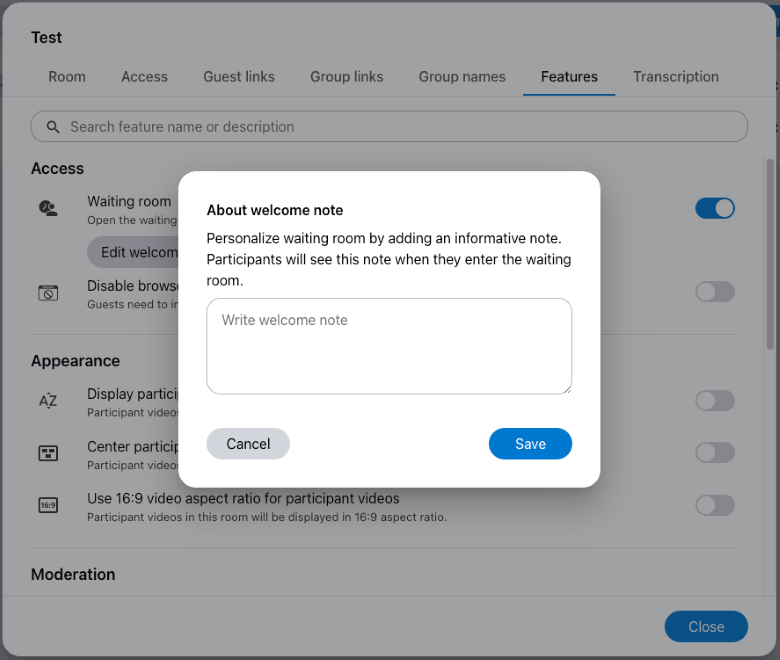
- Open the Settings and switch to the Features tab.
- Click on the button.
- Enter the welcome note in the text box.
- Confirm the changes by clicking the button.
Admit waiting participants
Moderators will be informed by an acoustic signal and a visual notification that there are people in the waiting room. In addition, a red notification signal appears below the Participant list icon in the secondary menu.
- Click on the Participant list icon in the secondary menu to open the participant list.
- Click on the Waiting room tab to view all participants who are waiting.
- Select the participant you want to admit to your alfaview room.
- Click the button that appears when you hover over the person’s name.
Admit multiple participants at once
- Tick the boxes next to the names of the people you want to admit to your room.
- To select all participants, tick the Select all box.
- Once you have selected all the people you want to admit to your room, click the button.
Sort the participants
- Click on the context menu at the bottom of the tab.
- Choose between Sort by arrival time and Sort by name.
Admitted participants always join the main room, even if the moderator is in a group.
If the waiting room is deactivated, waiting people are not automatically admitted to the main conference room. Instead, a moderator must admit them to the alfaview room.
Join waiting participants
As a moderator, you can join the waiting room and speak with waiting attendees. This feature allows you to exchange information, have a chat, or verify the identity of the waiting participants before admitting them to the alfaview room.
Join the group of a waiting participants:
- Click on the context menu at the bottom of the Waiting room tab.
- Click on the button.
- Select the group of the waiting person you want to speak to.
- Click on the button next to the group’s name.
- As soon as you and the waiting person have entered the waiting room group, you can communicate with each other via your microphones, cameras and the chat.
- When you have finished your conversation, you can leave the waiting room by navigating to the Room tab in the Participant list.
- Select the group you want to join. Then click on the button next to the name of the group.
- The waiting person returns to the waiting room and must be admitted to the alfaview room by a moderator.
While you are in a waiting room group, you can still manage the participants in the alfaview room as well as the participants in the waiting room by using the moderator controls.
If the Consultation with moderation icon is displayed next to a participant’s name in the waiting room, at least one moderator has joined the person in a waiting room group.
As a moderator, you can also join this group or admit the participant to the alfaview room by clicking the button.
Last updated on August 26th, 2026, 07:39 am